saniewski/mongo-express-docker-extension
Browse and manage MongoDB databases with Mongo Express inside Docker Desktop.
50K+
saniewski/mongo-express-docker-extension repository overview
Mongo Express Docker Extension
Browse and manage MongoDB databases with Mongo Express inside Docker Desktop. Connect to a local or remote MongoDB server without installing Mongo Express yourself or configuring its container manually.
Features
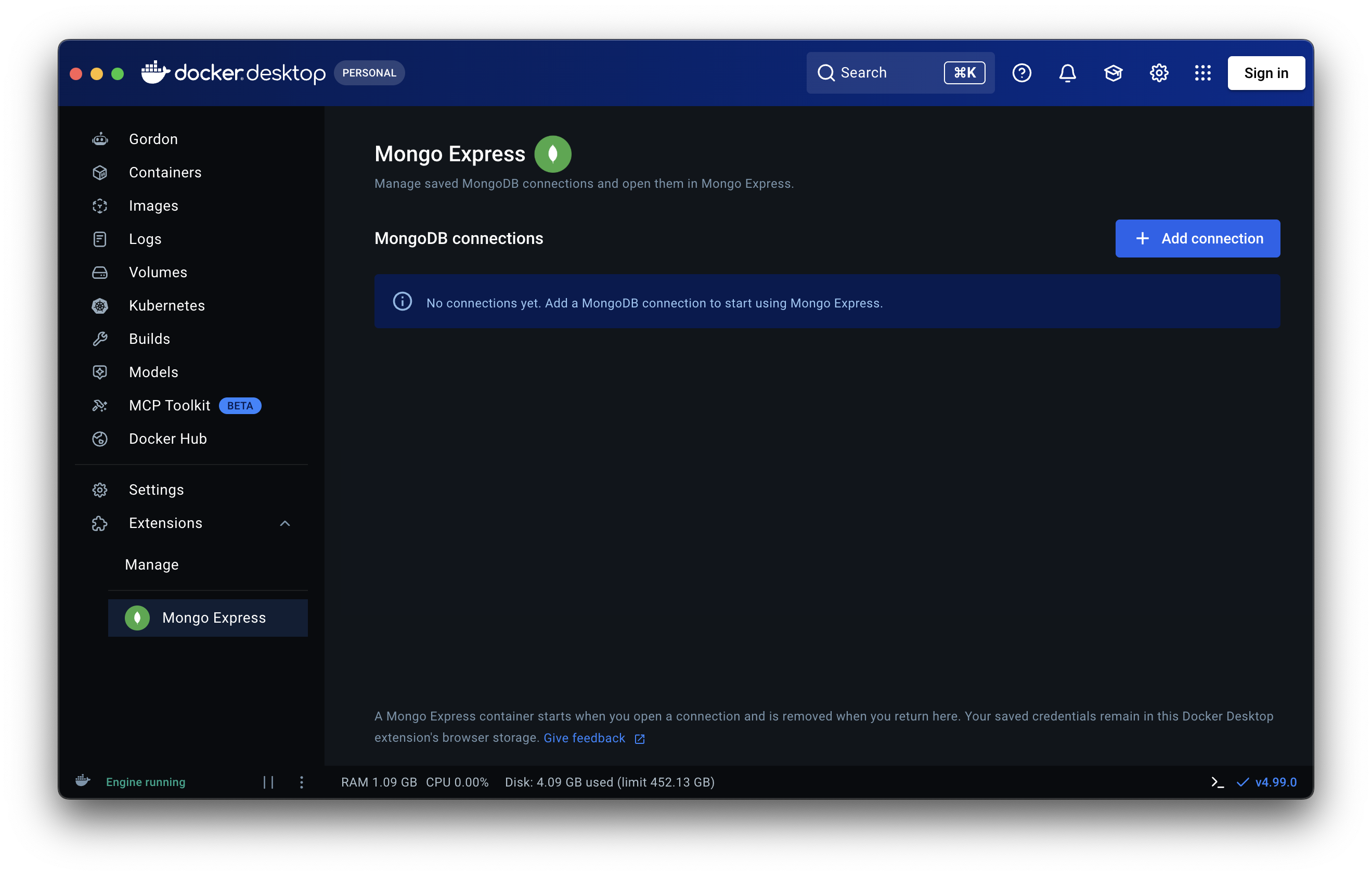
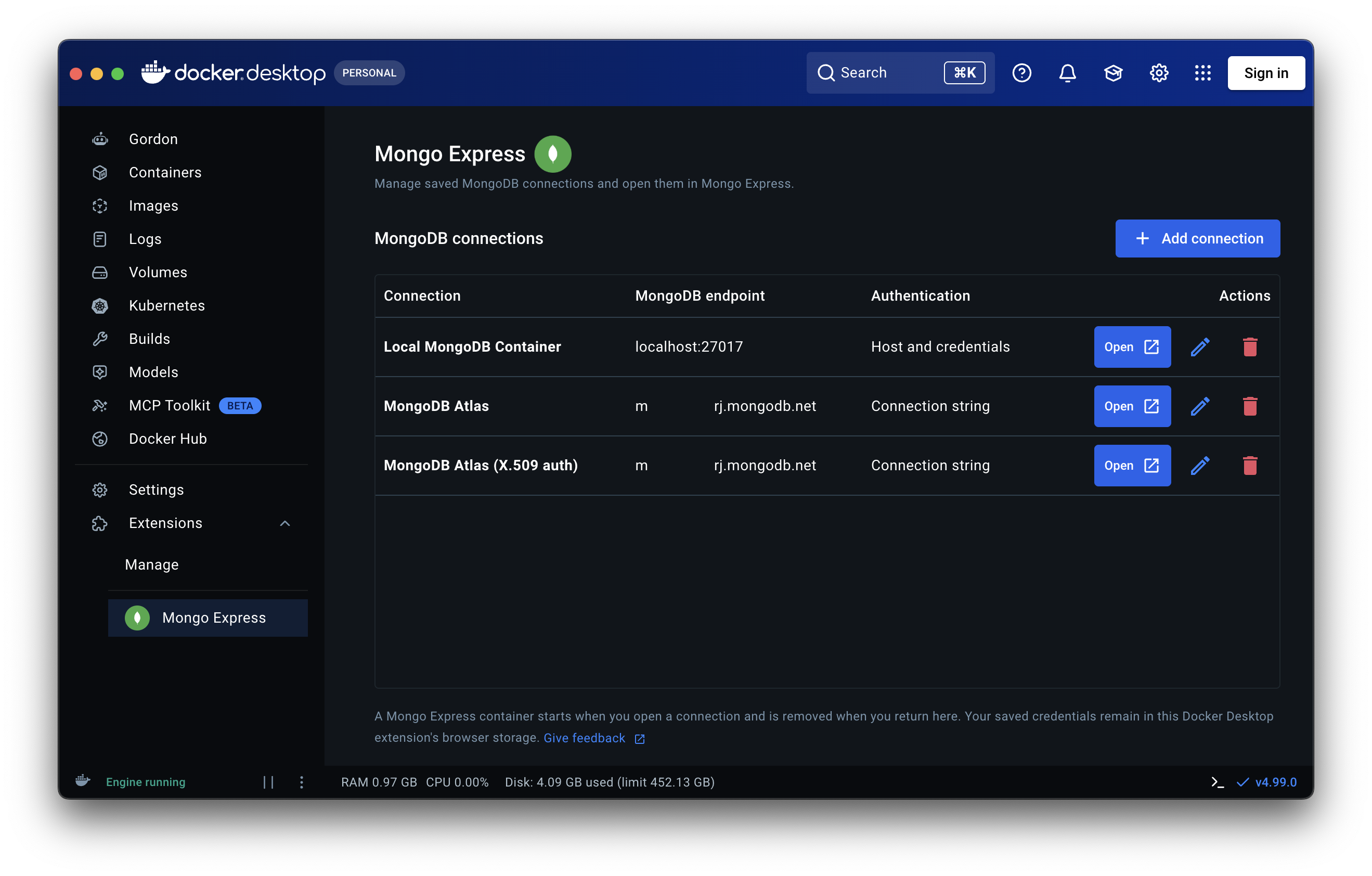
- Save and manage multiple MongoDB connections from the extension home page.
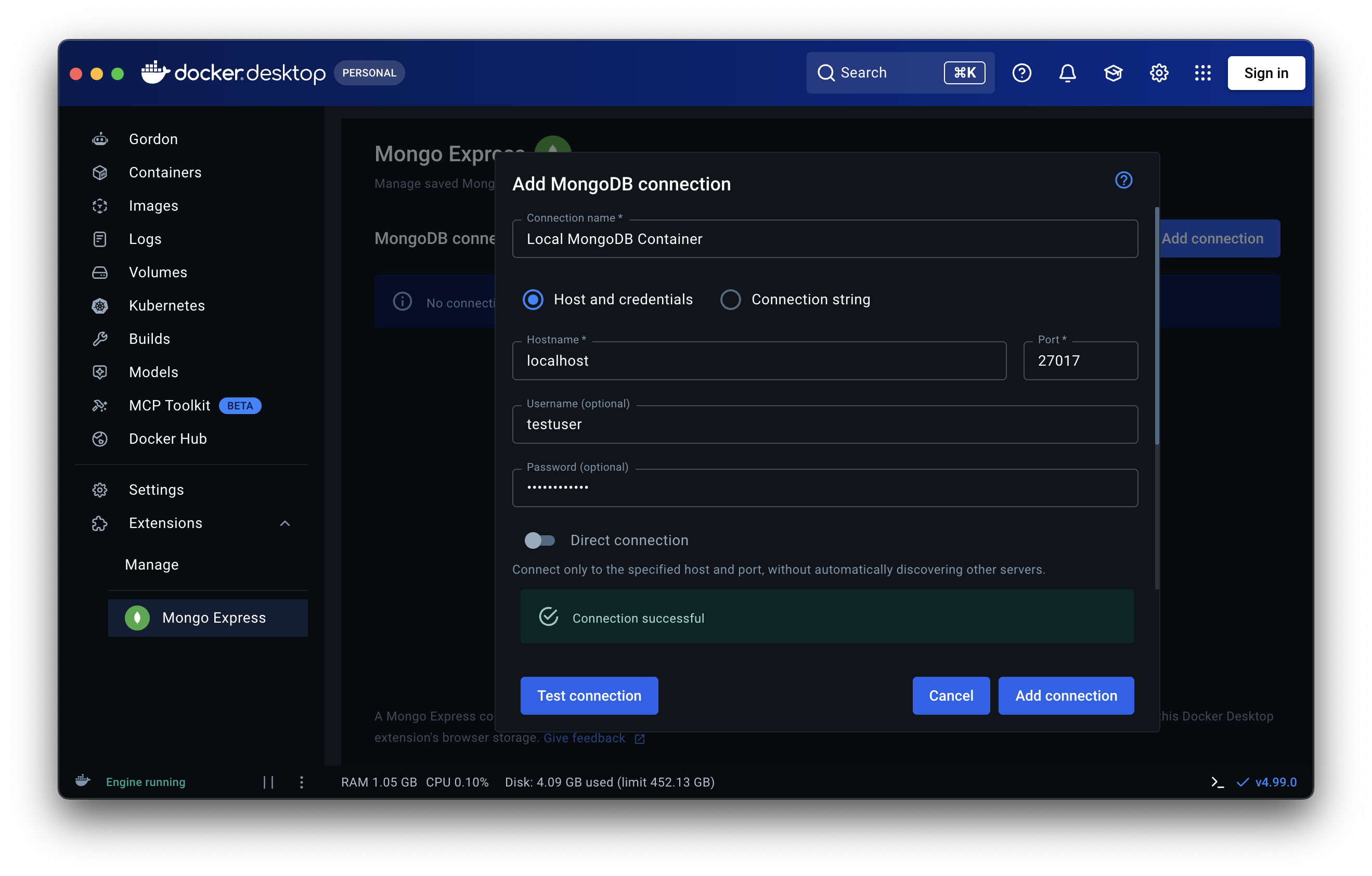
- Connect using a hostname and optional credentials or a MongoDB connection string.
- Test connection settings before saving, with a success message or the reason for failure.
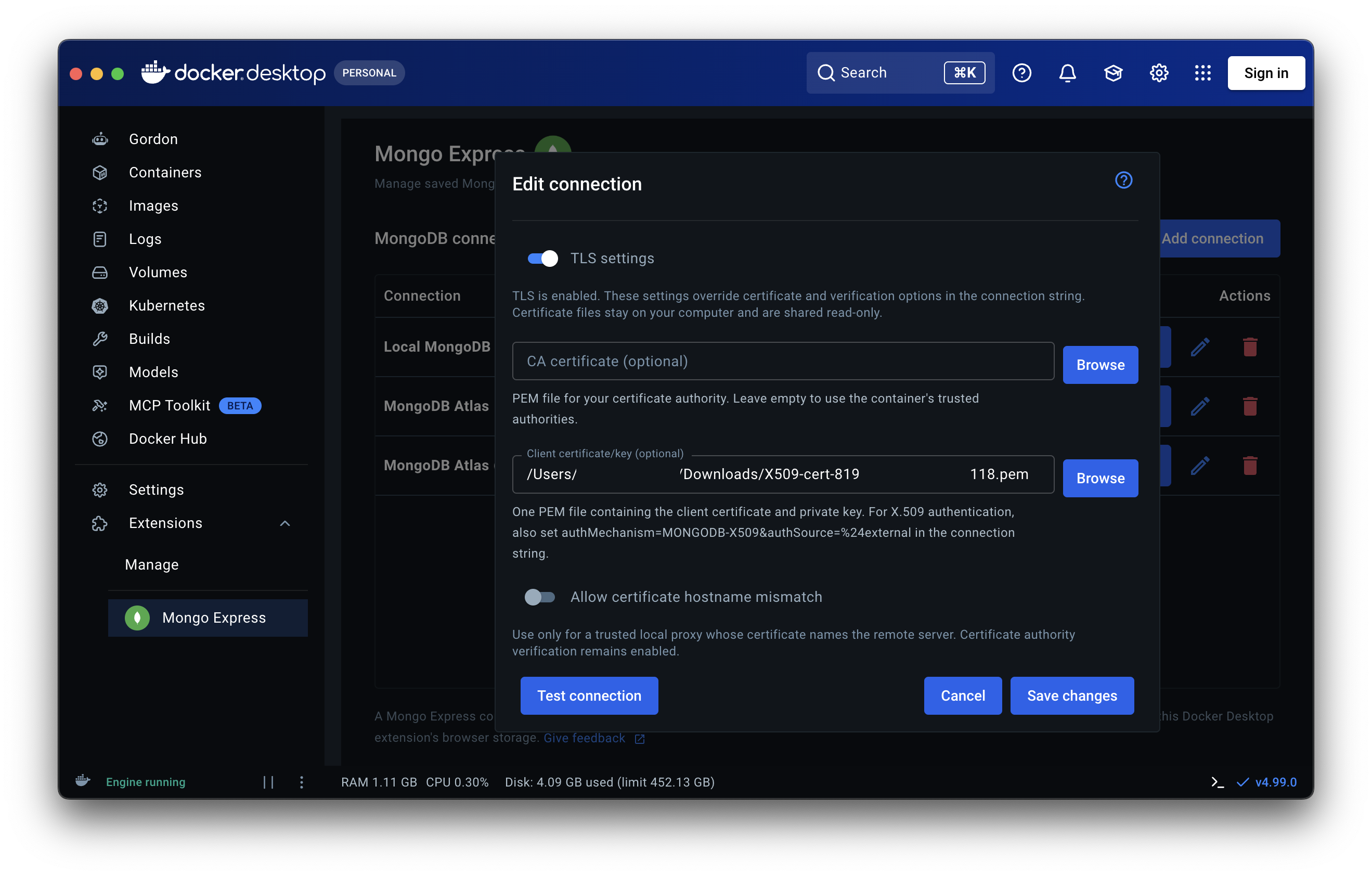
- Configure TLS with a custom CA and client certificate/key PEM files.
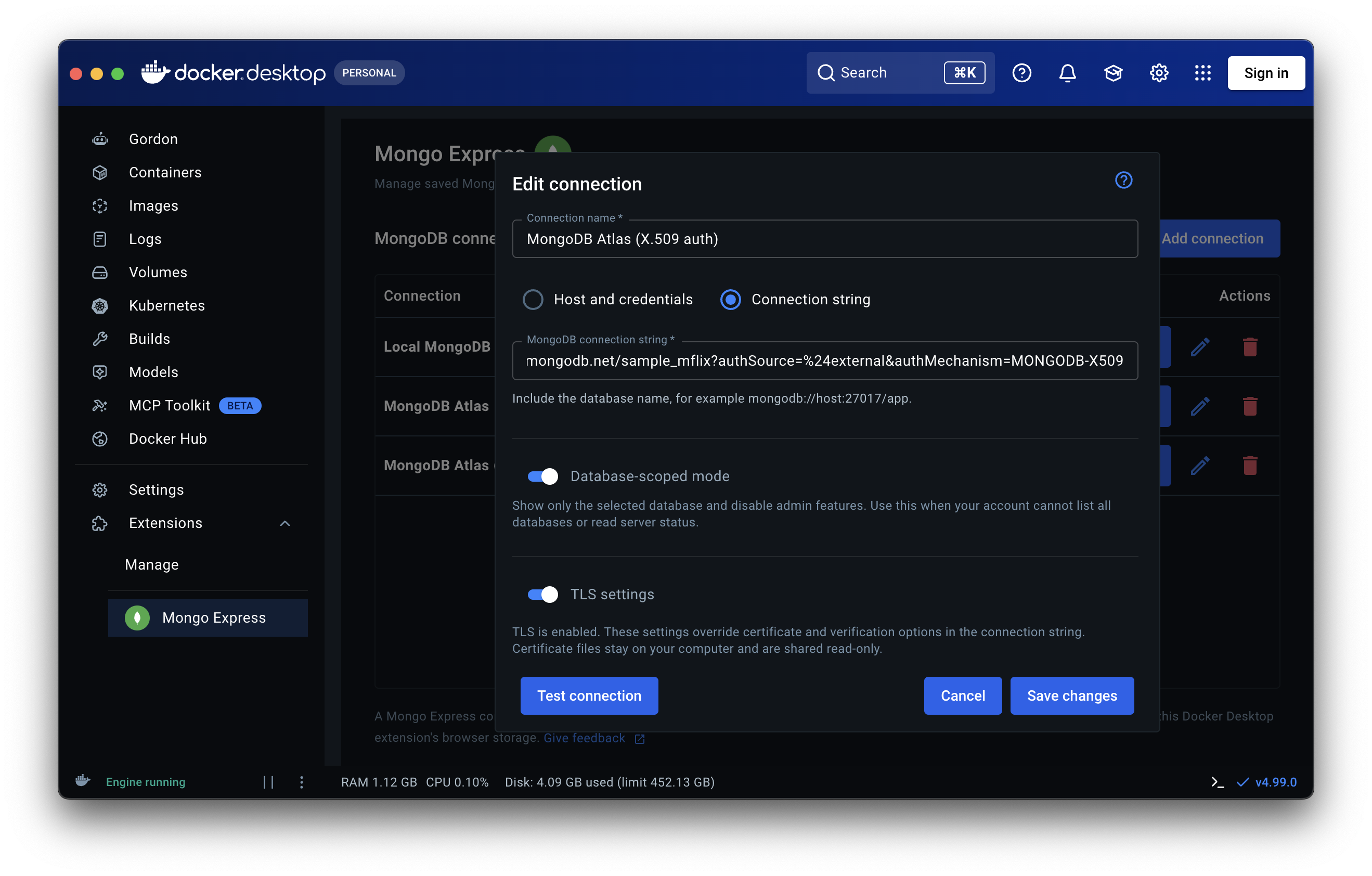
- Limit Mongo Express to one database with database-scoped mode.
- Open Mongo Express for a saved connection and remove its container when you return to the connections page.
Installation
Start Docker Desktop with Extensions enabled, then install the extension from the marketplace:
Or install it manually:
docker extension install saniewski/mongo-express-docker-extension:2.0.2
Usage
You need a running MongoDB server reachable from Docker Desktop. The extension starts Mongo Express; you provide the MongoDB server and any credentials it requires.
Open your first connection
- Open Mongo Express from the Extensions section in Docker Desktop.
- Select Add connection and enter a Connection name, such as
Local development. This required field is the display label for the saved connection. - Choose Host and credentials to enter a Hostname, Port (an integer from
1to65535, default27017), and optional username/password. Choose Connection string to paste amongodb://ormongodb+srv://URI instead. - If needed, configure Database-scoped mode or TLS settings as described below. Select Test connection to check the settings and see a success message or the reason for failure.
- Select Add connection to save the details, then select Open in the connections table.
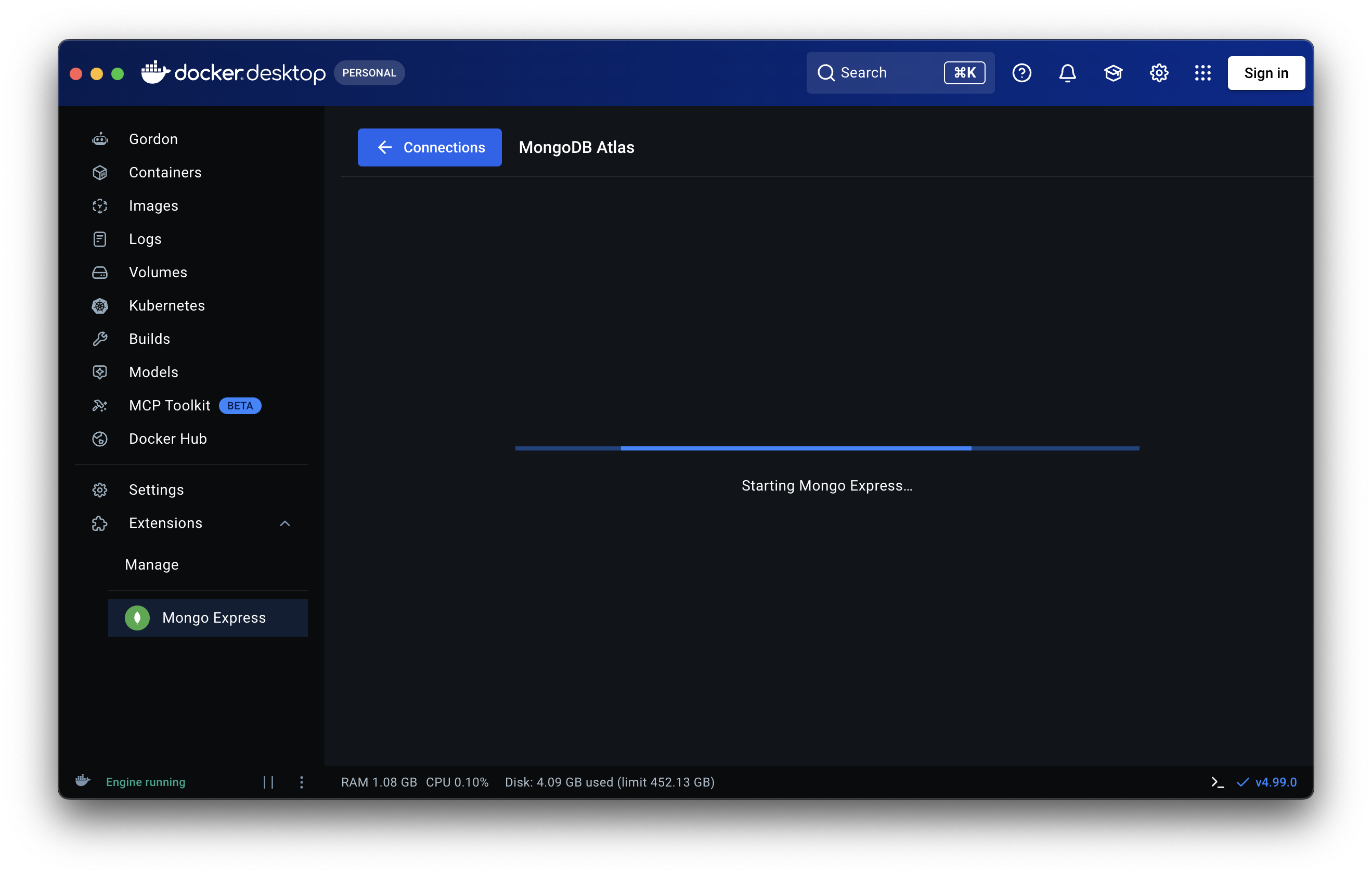
- Wait for Starting Mongo Express… to finish. The first launch may take longer while Docker downloads the Mongo Express image.
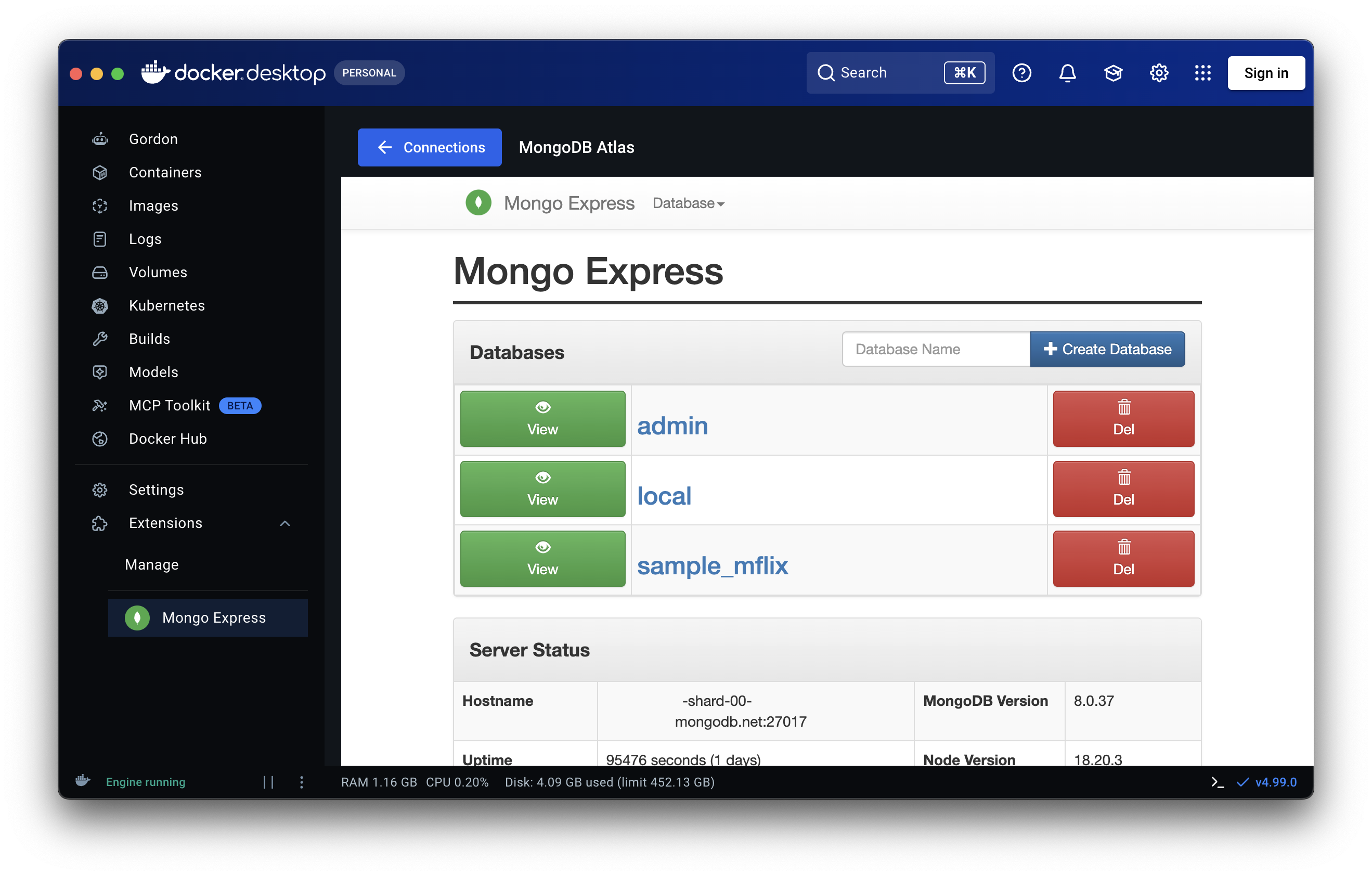
- In Mongo Express, select a database and collection to browse documents. Your MongoDB account permissions determine which read and write operations are available.
- Select Connections at the top to end the session and return to your saved connections.
Saving a connection only stores its settings. Test connection connects and pings MongoDB using a temporary container that is removed afterward. Open starts Mongo Express using the saved settings. The first test or session may take longer while Docker downloads the Mongo Express image.
Choose a MongoDB address
| MongoDB location | What to enter | Notes |
|---|---|---|
| On your computer | Hostname host.docker.internal, with the MongoDB port | For a single-host connection, localhost and 127.0.0.1 are also translated to host.docker.internal. |
| In a local Docker container | The running container name, for example my-mongo, with its internal MongoDB port (usually 27017) | The extension joins a matching MongoDB container network when it recognizes the image. |
| In a container with a published port | Hostname host.docker.internal, with the published host port | For a mapping of 27018:27017, enter port 27018. |
| On a remote server | The server hostname and port, or the connection string supplied by your provider | The server must allow connections from your network. |
| In MongoDB Atlas | The mongodb+srv:// connection string supplied by Atlas | Use a database user and allow your client IP address in Atlas network access settings. |
Automatic container network selection recognizes the mongo, bitnami/mongodb, and circleci/mongo
images. Use the exact container name, not just a Compose service name. For custom images or network
setups where automatic selection does not work, publish the MongoDB port and connect through
host.docker.internal.
For example, these connection strings connect to a local server, a local server with credentials, and an Atlas cluster respectively. Replace the example credentials and cluster hostname with your own:
mongodb://host.docker.internal:27017
mongodb://app-user:[email protected]:27017/app?authSource=admin
mongodb+srv://app-user:[email protected]/app?authSource=admin
In a URI, percent-encode special characters in usernames and passwords, such as @ as %40.
With Host and credentials, enter credentials normally; the extension handles encoding.
See the MongoDB connection string documentation
for options such as authSource and replica set settings.
Enable Direct connection in Host and credentials to connect only to the specified host and
port, without automatically discovering other servers. The option is off by default and is saved
with the connection. In Connection string mode, set directConnection=true in the URI instead.
Manage saved connections
- Open starts a Mongo Express session using the saved settings.
- The pencil icon opens Edit connection. Update the fields, optionally select Test connection to check them, and select Save changes.
- The trash icon opens a confirmation dialog. Select Delete to remove the saved connection.
Test connection checks the read permissions needed by the selected mode: listing collections in the selected database, or listing databases and their collections and reading server status in admin mode. It does not write data or verify write permissions. Opening a connection also checks that the Mongo Express home page responds before displaying it.
Returning with Connections stops and removes the session container while keeping your saved connection. Containers left behind by an interrupted session are cleaned up when the connections page next opens. Closing or deleting a saved connection does not remove your MongoDB server or its data.
Saved connection details, including passwords and credentials in URIs, remain in the Docker Desktop
extension's browser localStorage and are not encrypted by the extension. Remove saved connections you
no longer need, and avoid saving secrets on a shared desktop account.
Database-scoped mode
Enable Database-scoped mode when you want Mongo Express to show one database, including when your account cannot list all databases or read server status:
- With Host and credentials, fill in Database name, for example
app. - With Connection string, include the database in the URI path, for example
mongodb://host.docker.internal:27017/app.
A database name is required in either mode. It must be shorter than 64 bytes in UTF-8 and cannot contain whitespace, dots, slashes, backslashes, double quotes, dollar signs, or null characters.
This disables Mongo Express's admin features and limits browsing to that database. MongoDB still enforces the account's read/write permissions. The mode is off by default; adding a database to a URI alone does not enable it.
Host and credentials authenticates against admin. If the user was created in another database,
use Connection string with the appropriate authSource. For example, a user created in app can use:
mongodb://app-user:[email protected]:27017/app?authSource=app
TLS settings
Enable TLS settings to turn on TLS and optionally configure a custom certificate authority or a client certificate:
- CA certificate: an optional PEM file containing the CA certificate(s). Leave it empty to use the Mongo Express container's trusted authorities.
- Client certificate/key: an optional PEM file containing both the client certificate and its matching private key. If your provider supplies separate files, combine them into a private PEM file on your computer first.
- Allow certificate hostname mismatch: off by default. Enable only for a trusted local proxy whose server certificate does not name the address used to reach it. CA verification remains enabled.
Use Browse or enter an absolute path on the Docker Desktop host. Docker Desktop must be able to access the files through its file sharing settings. The extension stores only their paths and mounts the selected files read-only into Mongo Express. Use Test connection to check the TLS settings before saving. Save the connection, then open it to apply the settings. Close and reopen the connection after renewing or replacing certificates.
Enabled TLS settings override the certificate paths and verification options in the URI. When disabled, no certificate files are mounted and TLS follows the URI, including the default TLS behavior of mongodb+srv://.
Troubleshooting
If Test connection fails, the modal shows the reason. Correct the settings and test again; changing a field clears the previous result.
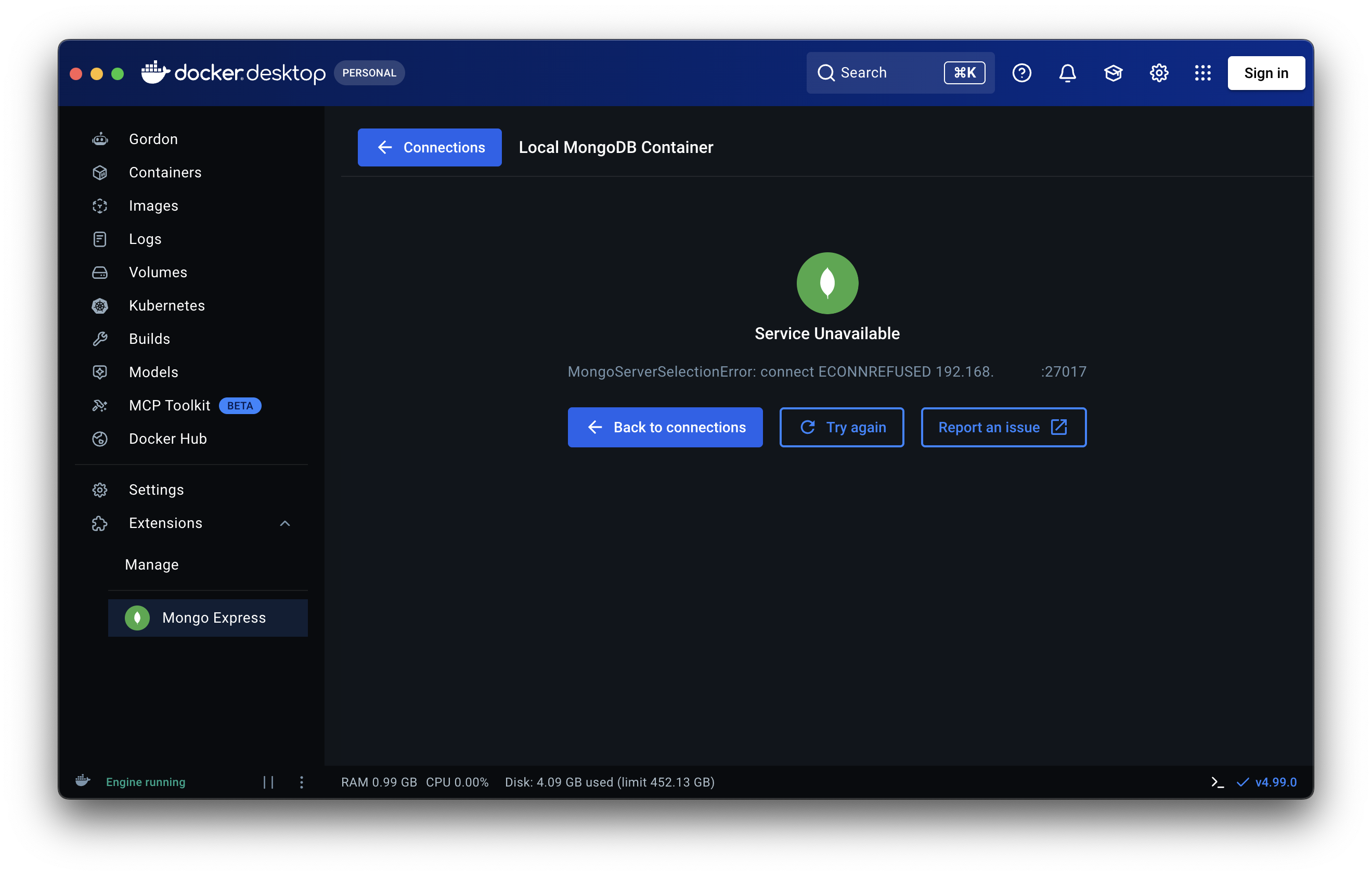
If Service Unavailable appears, read the error message. Select Back to connections to edit the saved settings, or Try again to retry with the same settings after fixing the problem.
| Problem | What to check |
|---|---|
| Mongo Express does not become ready within 60 seconds | Check that Docker Desktop and MongoDB are running, the address and port are correct, and Docker can download the Mongo Express image. Retry once the image download finishes. |
| Connection refused or server unreachable | Check the host or container address above, port publishing, VPN/firewall rules, and any provider IP access list. MongoDB must listen on an interface reachable from Docker Desktop. |
| Authentication or database access fails | Check the credentials and authSource. For an account limited to one database, enable Database-scoped mode and supply its database name. |
| Certificate file cannot be read | Choose an existing, readable PEM file using an absolute path and check Docker Desktop file sharing. A client PEM must contain both the certificate and its matching private key. |
| Certificate is untrusted, expired, or names another host | Select the correct CA, renew expired certificates, and use the hostname on the server certificate. Use Allow certificate hostname mismatch only for a trusted local proxy. Reopen the connection after changes. |
If the problem persists, select Report an issue on the error page and include the error message with any credentials removed.
Atlas X.509 authentication
For Atlas X.509 authentication, select the downloaded PEM in Client certificate/key, leave CA certificate empty and Allow certificate hostname mismatch off, and use:
mongodb+srv://cluster.example.mongodb.net/?authMechanism=MONGODB-X509&authSource=%24external
Selecting a certificate does not select the authentication mechanism. If the user cannot read server
status, enable Database-scoped mode and add your database name after the hostname, keeping the
authentication options above. Mongo Express admin mode requires the serverStatus permission.
Support and license
For help or to report a problem, open an issue. This project is licensed under the MIT License.
Development
Use Node.js 24 (see .nvmrc) and pnpm 12.6.0, pinned in package.json. With
nvm installed, set up the toolchain and dependencies:
nvm install
nvm use
corepack enable
pnpm install --frozen-lockfile
Start Docker Desktop and build and install the extension:
make install-extension
If the extension is already installed, use make update-extension instead.
Start the development server:
pnpm dev
In another terminal, point the installed extension at the local server:
make use-local-ui
Open Mongo Express inside Docker Desktop to test changes with the extension SDK and Docker theme.
Use make use-devtools to open its developer tools. Run make reset-dev to return to the packaged UI.
Run the checks before submitting changes:
pnpm build
pnpm test --runInBand
pnpm lint
pnpm format:check
The build checks both the application and vite.config.ts types before bundling. To check types
without producing a build, run pnpm typecheck.
Screenshots
Tag summary
Content type
Image
Digest
sha256:312d10727…
Size
156.1 kB
Last updated
3 days ago
docker pull saniewski/mongo-express-docker-extension